 Ohm
Ohm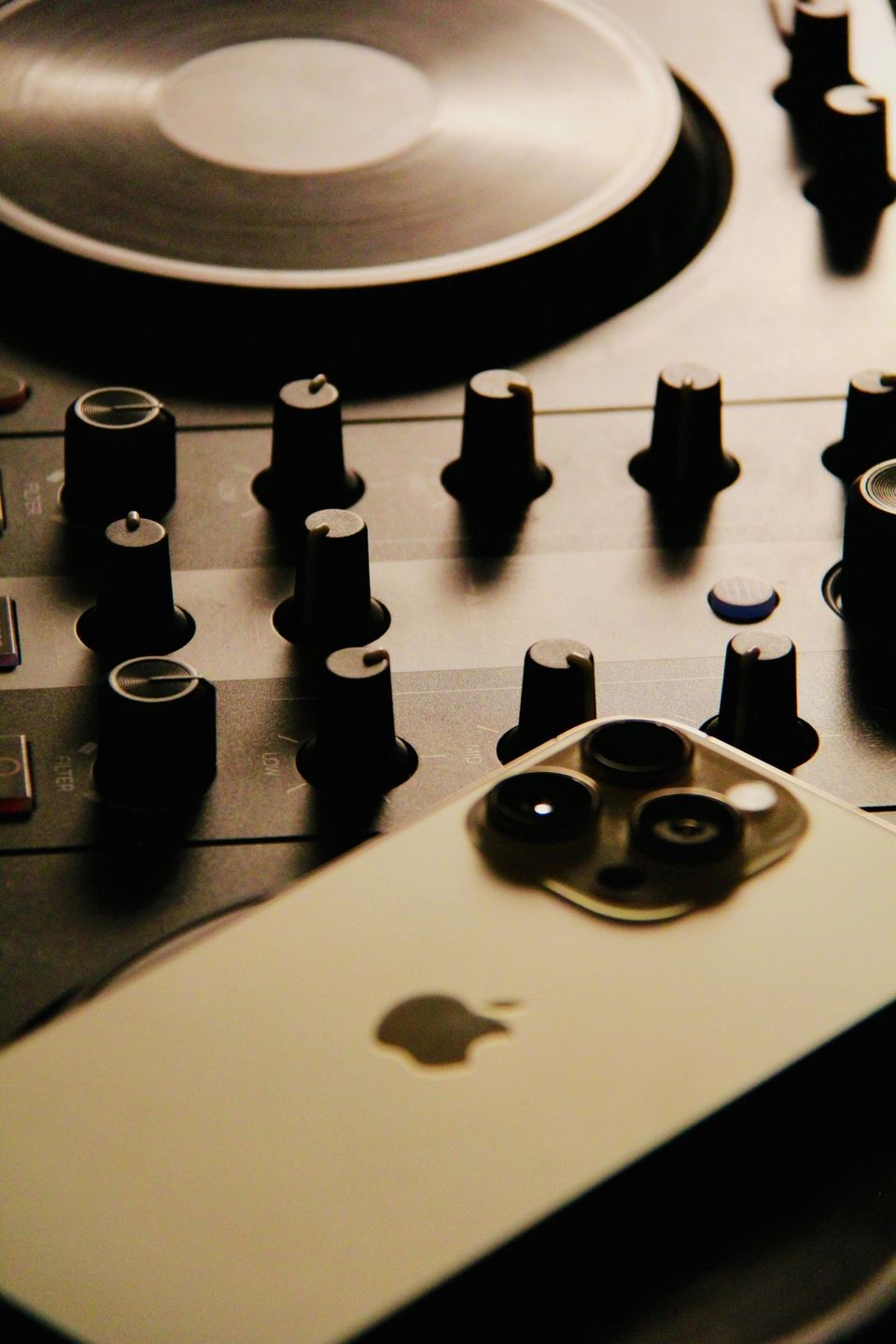
The Pioneer DJM-900NXS2 sitting in front of you has a USB port on the rear panel. Your iPhone has a USB-C port. There is a cable between them for €3 — and nothing else stands between you and a studio-quality WAV recording of your set.
Ohm connects to class-compliant DJ mixers without an external interface, without an Apple adapter, without a driver. The mixer plugs straight into the iPhone. From that point, Ohm handles the routing, records post-fader audio at up to 24-bit/96kHz, and identifies every track you play as the set unfolds.
This guide covers which mixers work, which cable to buy, and what happens on screen when you plug in.
Which Mixers Work with Ohm
Ohm supports USB class-compliant DJ mixers — devices that present themselves to iOS as standard USB audio hardware, with no custom driver. On iPhone, installing a third-party audio driver is not possible. A mixer that requires driver software on Mac or PC will not work on iOS. No workaround exists.
Pioneer DJM range. The DJM-750MK2, DJM-900NXS2, DJM-TOUR1, DJM-V10, DJM-V10-LF, DJM-A9, and DJM-450 all work with Ohm. Every Pioneer DJM in this list uses a USB-A port for audio — the standard rectangular port you'd see on a laptop charger or hub.
When Ohm detects a Pioneer DJM, it sends a routing command over MIDI that switches the USB output from the default DVS signal (pre-fader, intended for Serato and Traktor timecode setups) to the post-fader Rec Out. This happens automatically. No notification, no pop-up, nothing to configure. Your faders, crossfader, and EQ are all captured from the first bar. To verify the routing fired, move your master fader — if the VU meters in Ohm respond, the post-fader signal is active.
Allen & Heath XONE:96. The XONE:96 works with Ohm on port 1 only. It uses a USB-B connector — the square port found on desktop printers and some studio interfaces. Port 2 on the XONE:96 carries the FX send/return bus, not the master mix. Plug into port 2 and you'll record nothing useful. Port 1 delivers the stereo master. No routing command required.
Rane MP2015. Fully supported. The MP2015 has both USB-A and USB-B connectors; either works with Ohm.
Denon DJ X1850 Prime and X1800 Prime. Ohm will attempt to connect, but post-fader Rec Out routing is unconfirmed on these models. Treat the result as untested.
The Cable You Need
No adapter. Just a cable — one end into the mixer, the other into your iPhone.
Which cable depends on two things: your mixer's USB port type, and your iPhone connector.
Pioneer DJM mixers (USB-A port):
- iPhone 15 or later: USB-A to USB-C, around €3.
- iPhone 14 or earlier: USB-A to Lightning. You probably already own one — it's the cable that came with older iPhones.
Allen & Heath XONE:96 (USB-B port, port 1):
- iPhone 15 or later: USB-B to USB-C, around €3.
- iPhone 14 or earlier: USB-B to Lightning.
Rane MP2015: Match the cable end to whichever port you're using.
The cable must carry data — not charge only. Charge-only cables omit the data wires entirely — plug one in and Ohm sees nothing. Any cable labelled "data cable" or "sync cable" works. If the listing doesn't specify, look for one that explicitly mentions data transfer.
Your Mixer Powers the iPhone
Plug a USB cable between your mixer and iPhone and the mixer starts charging the phone. The same cable carrying audio also delivers power. Ohm records through a two-hour set and your iPhone doesn't drain. No separate charger, no pass-through adapter, nothing additional to carry.
This is a practical advantage over the external-interface route. Interfaces add a box, a cable, another point of failure, and usually no power delivery to the phone. A €3 cable replaces all of that.
Making the Connection
- Power on your mixer.
- Connect the cable to the mixer's audio USB port. On Pioneer DJMs, this is the USB port on the rear panel — separate from the USB-A ports used for USB sticks. On the XONE:96, use port 1.
- Connect the other end to your iPhone.
- Open Ohm and go to the Record tab. Within a few seconds, a blue pill in the top-left shows the mixer name with a glowing dot. The L/R VU meters activate.
- For Pioneer DJMs: Ohm sends the Rec Out routing command as soon as the mixer is detected. Move your master fader. If the VU meters respond, the signal is post-fader and you're ready to record.
No iOS audio settings to change. The signal path from mixer to Ohm is direct.
What Ohm Does While You Play
Hit record. Two things start running immediately.
Recording. Ohm writes a WAV file at up to 24-bit/96kHz from the post-fader stereo mix. Every fader move, every EQ cut, every crossfader pull is in the recording. The waveform scrolls on screen in real time; the L/R VU meters show three segments — low, mid, and peak.
Track identification. Both Beatport and ShazamKit run in the background, fingerprinting what's playing against their catalogues as you mix. Beatport waits around 30 seconds after a transition resolves before sampling, catching the incoming track clearly rather than blend noise. Shazam follows the same timing.
When a track is identified, a confirmation card slides up from the bottom of the screen: track title, artist, YES or NO. Confirm it and the result is logged. If you're mid-mix and can't respond, it confirms automatically after 25 seconds. The pill indicator in the top bar tracks your count — after three tracks it reads 3 TRACKS.
Track identification doesn't run on the internal microphone. USB audio is what makes the fingerprinting reliable. Mic recordings carry too much room noise.
While recording, Ohm's Live Activity runs on the Dynamic Island or lock screen: your mixer name, the elapsed recording time, and a stop button. You can stop the recording from the lock screen without unlocking your phone.
The padlock icon on the Record screen locks the record button so a stray tap doesn't end the set. Hold the padlock for 0.6 seconds to unlock — a progress ring fills as you hold.
The Recording in Your Library
Stop recording and Ohm saves the set and navigates to your library. The WAV is complete.
Every identified track is embedded as a named cue point in the file. Open the set in your library and the full tracklist is there — each track name at its exact timestamp. The timestamp is set to the moment the outgoing track finished fading, not the start of the blend, so seeking to any cue point lands in clean audio of that track rather than mid-mix. Tap any track in the list and playback jumps there.
The cue points are standard RIFF cue chunks. Import the WAV into Rekordbox or Serato and the markers carry over. Your set's tracklist is already in the file before you ever open a computer.
If It's Not Working
No audio detected at all. Your mixer needs a custom driver on Mac or PC, which means iOS can't use it. Check the supported mixer list above.
Cable connected, VU meters dead. Charge-only cable. Swap it for one that carries data.
Mixer detected but faders don't move the meters. The Rec Out routing command didn't fire. Disconnect and reconnect the USB cable. On a DJM-750MK2, confirm you're using the audio USB port on the rear panel, not the storage ports — those don't carry audio to Ohm.
Audio distorted or pitch-shifted. Sample rate mismatch. Open the mixer's USB audio settings and set it to 44.1 kHz or 48 kHz.
XONE:96 connected but silent. You're in port 2. Move the cable to port 1.
Denon mixer shows a signal but it doesn't match your master out. Rec Out routing on Denon mixers is unconfirmed in Ohm. The signal may be on the wrong USB channel — this is a known limitation pending hardware testing.
The gap between your mixer and a clean WAV recording is a €3 cable and Ohm. Once you're plugged in, everything else — routing, metering, track identification, the library — runs without you touching a setting.