 Ohm
Ohm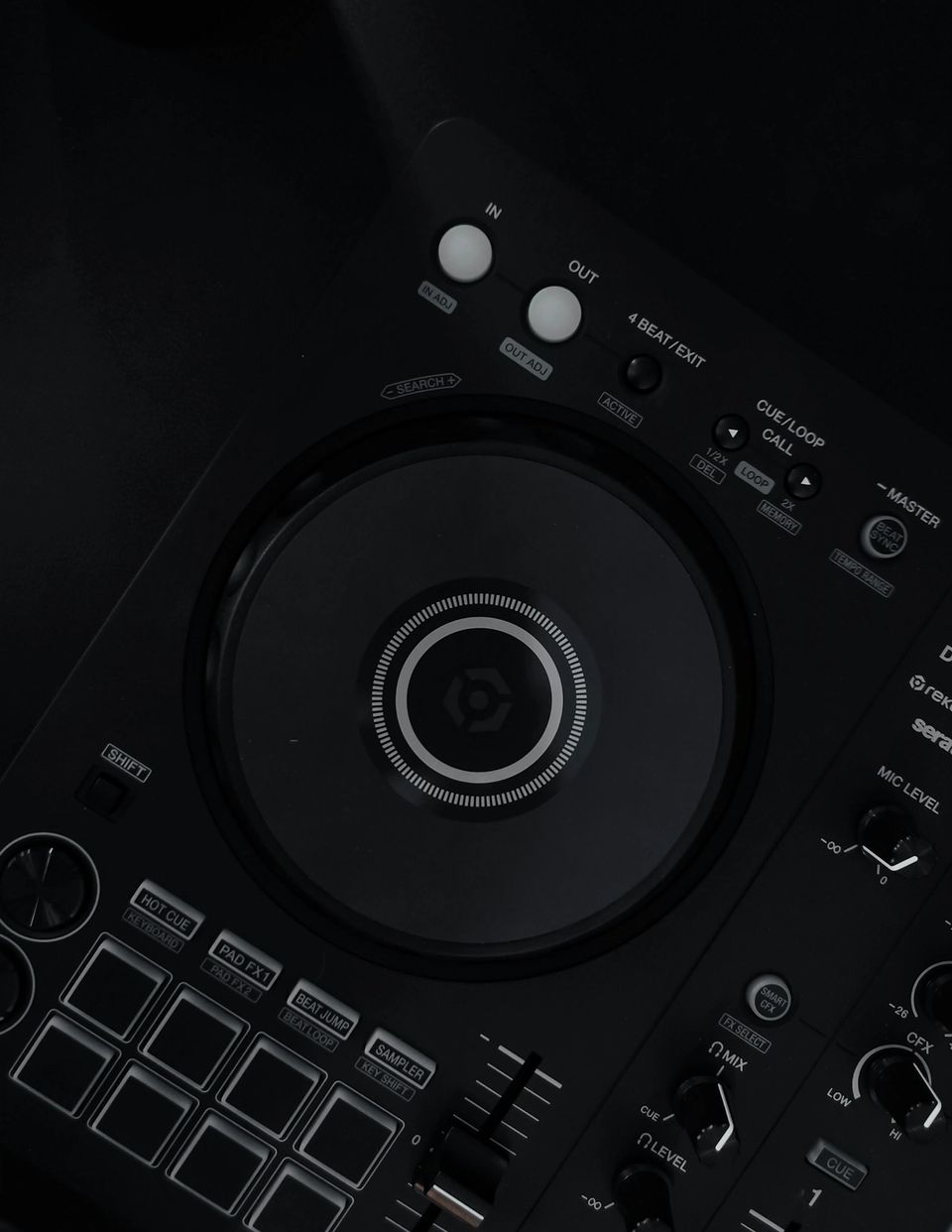
The DDJ-FLX4 has been the go-to entry-level Pioneer controller for a few years now. Most owners have never recorded a set directly from it to their iPhone, because they assumed they needed an external audio interface to do it. They don't.
A large number of Pioneer DDJ controllers already contain a built-in USB audio interface. Connect one to your iPhone with a USB-C cable and it shows up as a selectable audio input, the same way a Focusrite Scarlett would. The controller sends its full stereo master mix over USB. No drivers, no extra hardware. Open Ohm, select the controller as your input, and record your DJ set from the controller directly to iPhone.
This guide covers which Pioneer DDJ models support USB audio output for iPhone, what cable each model needs, and how to set up that recording.
How USB audio output works on a controller
The capability comes from a standard called USB Audio Class, or UAC. It allows audio devices to talk to any USB host without needing custom drivers installed. Apple's iOS implements this standard. Any class-compliant device is recognized as an audio input without extra configuration.
Pioneer confirms the DDJ-FLX4 is class-compliant, stating that "there's no need to install an audio driver." That covers PC, Mac, and iOS alike. Connect it to iPhone via USB-C and the controller appears as an audio device in iOS. Any recording app using CoreAudio can pick it up. That includes Ohm, GarageBand, and anything else.
What gets sent over USB isn't just MIDI control data. The full post-fader master output travels through the same cable. Stereo, mixed, ready to record. On the DDJ-FLX4, this includes any microphone routed through the mixer section. Your whole mix, exactly as you played it, is what the app receives.
Which Pioneer DDJ models work with iPhone
Only models confirmed from Pioneer's own product pages are listed here as compatible. If a model is not on this list, check the "unconfirmed models" section below before assuming it will work.
DDJ-FLX4
- USB-C, confirmed iPhone-compatible
- Pioneer confirms class-compliant operation and rekordbox for iOS support on the product page
- Connects to iPhone 15 and later with a USB-C to USB-C cable
DDJ-FLX2
- USB-C, confirmed iPhone-compatible
- AlphaTheta confirms iPhone and iPad compatibility via USB-C with rekordbox for iOS
- USB spec: frequency response 20 Hz to 20 kHz, S/N ratio 102 dB. That 102 dB figure is more headroom than most DJ mix recordings need.
- Bus-powered (see the power note below)
- Connects to iPhone 15 and later with a USB-C to USB-C cable
Models that are class-compliant but need iOS verification
These controllers are confirmed class-compliant from Pioneer's product pages, but iOS audio compatibility is not stated at the time of writing. Class-compliant on a computer does not guarantee iOS audio works. Try connecting yours before buying anything extra.
- DDJ-FLX6: Class-compliant confirmed, built-in sound card. iOS audio status not confirmed from the product page.
- DDJ-REV5: USB-C ports confirmed. iOS audio status not verified.
- DDJ-REV7: Uses USB-B ports. iOS audio status not verified.
- DDJ-400: USB-B. iOS compatibility status not confirmed from current Pioneer product pages.
If you own one of these and the controller appears as an audio input when connected to your iPhone, the recording setup below works identically.
Controllers that do not have USB audio output for iPhone
Not every DDJ has a built-in audio interface. These models connect to iOS for software control only, with no audio over USB:
- DDJ-200: No built-in audio interface. Pioneer confirms this, and the DDJ-200's iOS compatibility (via WeDJ) covers only software control, not audio recording.
- DDJ-SB3: Equipped with a Serato-specific sound card for computer use. No iOS audio path.
For these controllers, you need an external audio interface between the master output and your iPhone. The guide to the best USB audio interfaces for recording DJ sets covers the options that work well with Ohm.
What cable do you need
USB-C controllers (DDJ-FLX4, DDJ-FLX2) to iPhone 15 and later (USB-C port):
- USB-C to USB-C cable. USB 2.0 speed is sufficient. Use a cable from a reputable brand. Cheap cables can cause audio dropouts or fail to supply enough power for the controller to initialize.
USB-C controllers to older iPhones (Lightning port):
- Apple USB-C to Lightning Adapter plus a USB-C cable, or
- Apple USB Camera Adapter (USB-A to Lightning) plus a USB-A to USB-C cable
USB-B controllers (if iOS-compatible) to iPhone 15 and later:
- USB-B to USB-C cable
USB-B controllers to older iPhones (Lightning):
- USB-B to USB-A cable plus the Apple USB Camera Adapter (USB-A to Lightning)
Avoid unpowered passive USB hubs. Some controllers need a reliable power draw to initialize their audio hardware. Not all hubs provide that. If the controller isn't recognized as an audio input, an unpowered hub is the first thing to eliminate.
How to record from a controller with Ohm
- Power on your controller, then connect it to your iPhone with the appropriate USB cable.
- Open Ohm. On the recording screen, tap the input source selector.
- Your controller will appear in the list by name. Select it.
- Play a track and bring up the fader. Watch the level meters in Ohm to confirm signal is coming through. Adjust your gain before recording. The gain structure guide covers how to set levels correctly.
- Tap record. Ohm captures the full stereo mix from the controller's USB audio output in real time.
If the controller doesn't appear in the input selector, check the cable first. Confirm the controller is on before you connect. On Lightning iPhones, use an Apple-branded adapter. Third-party ones often do not pass USB audio.
What audio quality to expect
Pioneer does not publish sample rate and bit depth figures for DDJ controller USB audio on their public product pages. The DDJ-FLX2 spec lists a 20 Hz to 20 kHz frequency response via USB and an S/N ratio of 102 dB. Good enough for any DJ mix recording.
The audio quality from a controller's USB output is fixed by the controller's hardware. Ohm captures exactly what the controller sends. Choosing a higher recording mode in Ohm won't improve the source; it captures fidelity that isn't there if the hardware doesn't support it. The recording format guide explains what each mode does and when it matters.
Pioneer DJM mixers are purpose-built audio interfaces alongside their mixer functions, and they have more headroom in their audio design. If you need higher USB audio quality than a controller provides, a mixer is the hardware upgrade path. The companion guide to recording from a DJM mixer covers that workflow.
Controllers like the DDJ-FLX4 have always been capable of sending clean audio directly to an iPhone. The hardware is there. What was missing was a clear explanation of the fact. If you've been putting off recording because of the gear question, stop. The controller was already the interface.