 Ohm
Ohm
The stream ends. You open Library, tap the recording, and find an audio waveform where you expected a video file. If you want to export your DJ set as video from Ohm, you are one tap from it. There is one thing to understand first.
The camera footage and the audio are saved separately. Ohm combines them on your iPhone.
What Ohm saves after a live stream
Every live stream session where the camera was active ends with two files written to the app:
- A camera MOV: raw footage from the iPhone camera. Video track only, no audio.
- A WAV recording: the post-fader audio feed from your mixer or microphone, captured separately from the camera. No video.
Neither file is the finished export by itself. The camera records picture; the audio engine records sound. Keeping them separate during the session means neither is degraded by the other. The WAV captures exactly what the mixer outputs, without any interference from the camera. The footage stays exactly as the camera captured it.
A recording with both files gets a flag that unlocks the Audio + Video option in the share sheet. No camera footage, no option. A STREAM badge on a recording confirms it came from the live stream flow. It does not confirm that the camera was active. If you live-streamed without enabling the camera, only the Audio option will appear.
Record tab sessions are audio-only by design. The Audio + Video option will not appear for them, ever.
How Ohm builds the combined file
When you tap Audio + Video, Ohm builds the merged file on-device before the share sheet opens. Ohm verifies both files have usable durations, then builds a shared timeline using the timestamps it recorded during the session.
The orientation of the footage is preserved. If you recorded in portrait or landscape, the export comes out the same way.
The result is a temporary MOV file: your camera footage with the WAV as the audio track. Once you share or save it, the temporary file is cleaned up automatically. The original WAV and camera MOV inside Ohm remain unchanged. Each export is assembled fresh. That means you can export as many times as you need without affecting anything stored in the app.
This composition step is what powers the in-app video player in Library too. The video Ohm shows you during playback is built through the same process as the export. A progress indicator appears while the file builds; you can cancel at any point. Longer sessions take more time.
How to export
- Open the Library tab.
- Tap the recording you want to export.
- In Set Detail, tap the Share button at the top right.
- In the share sheet, tap Audio + Video.
- Wait for the progress bar to complete. The iOS share sheet opens.
Four taps and a wait. The share sheet that appears is the standard iOS one: whatever apps and destinations are available on your device show up there.
What the exported file contains
The exported MOV holds two things: the camera footage and the WAV audio, synchronised using the session's recorded timestamps.
What it does not hold:
- The track identification card that appears in the in-app Library player during playback
- Any burned-in graphics from the outgoing stream
- Any overlay of any kind
The file is clean audio and video. The track cards visible in the Library player are part of the in-app interface only. They do not get written into the export. If you want clean footage with no on-screen text, that is what you get.
The source WAV and camera MOV inside Ohm are never touched by the export process. They stay intact for future use.
Where to send the exported file
When the file is built, your iPhone's share sheet takes over. From there you can:
- Save to the Files app or iCloud Drive
- AirDrop to a Mac or another nearby device
- Any app on your iPhone that accepts video will appear in the list
- Send to a cloud storage or file-sharing app
The export does not save automatically to the Camera Roll. If you want it in Photos, use the Save Video action from the share sheet.
File size depends on set length and your phone's camera resolution. A full-length session produces a substantial file. Keep that in mind before sending it over mobile data.
When to use Audio instead
If you only need the WAV, tap Audio in the share sheet instead. That delivers the source WAV file directly, with no composition step and no wait.
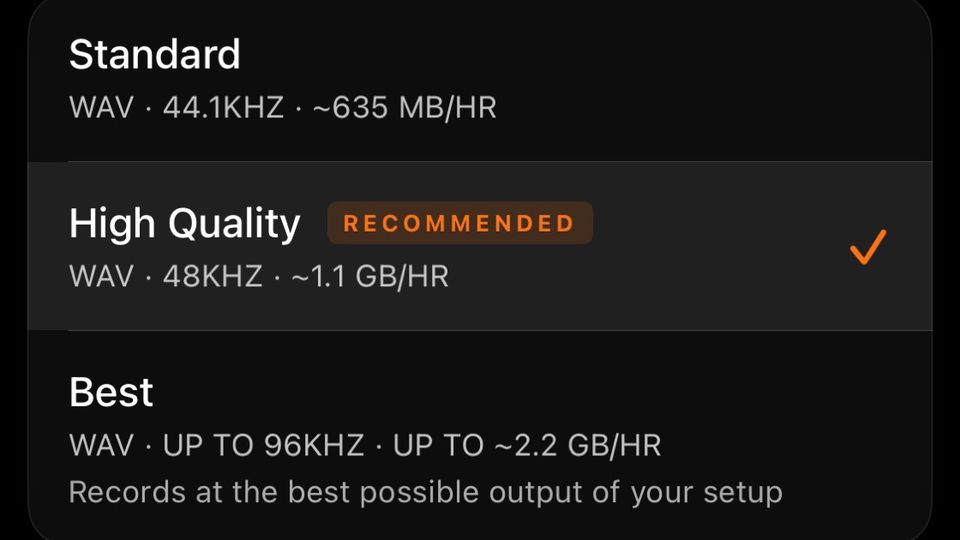
Use Audio when you are sending to a mastering engineer, uploading to a streaming platform, or bringing the recording into a DAW. The audio quality is identical to what Audio + Video carries: the same WAV, the same resolution, nothing lost.
Use Audio + Video when you want the full performance on record. The footage, the mix, and the sync.
For the full walkthrough of Ohm's live stream feature, including how to enable the camera before you go live, see How to Live Stream Your DJ Set from iPhone Using Ohm.