 Ohm
Ohm
A desktop streaming setup for a DJ set involves a laptop running OBS, a separate USB audio interface routed from your mixer, a webcam, and the cables that connect all of it. Ohm replaces that chain with an iPhone.
The same USB connection you use to record a set feeds the stream — post-fader audio, straight off the mixer. Phone camera handles video. When a track gets identified, the name appears on screen automatically. Stop the stream and a WAV plus a video file are already waiting in your library.
What you need
- An iPhone
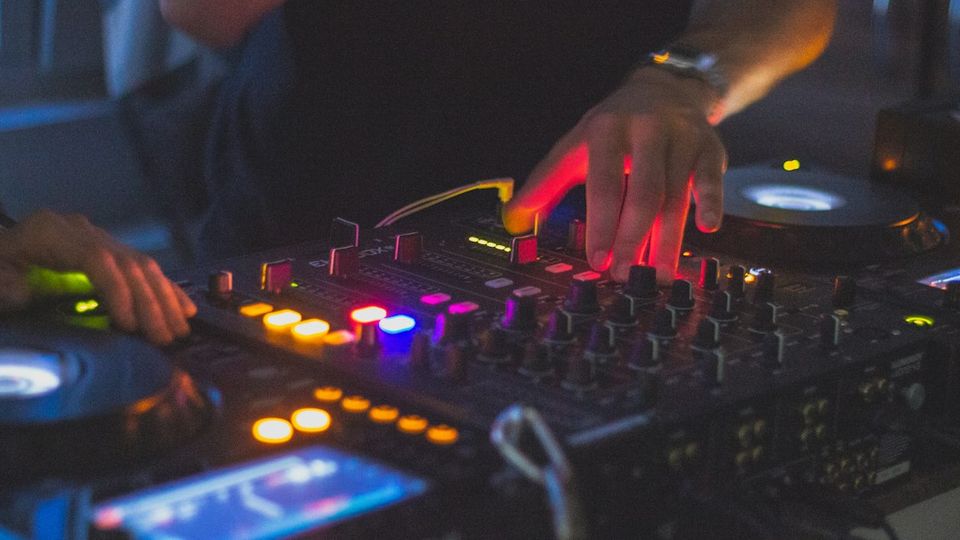
- A mixer with USB audio output — DJM-750MK2, DJM-A9, or any USB audio class-compliant mixer
- USB-C hub or Apple’s Camera Connection Kit to connect the mixer to the iPhone
- Your streaming account credentials for Twitch or YouTube
If you’re already recording with Ohm, you have everything. Nothing extra.
For more on the mixer connection itself, see How to Connect Your DJ Mixer to an iPhone Using Ohm.
Starting a stream
Open the Live tab in Ohm. Tap the go-live button. A setup sheet appears.
From the setup sheet you choose your destination: Twitch or YouTube. If you haven’t connected your account before, Ohm opens an in-app OAuth flow to link it. Set a stream title, confirm your audio input, and choose your video quality — 720p is the default, 1080p is available if your connection supports it. Tap to confirm.
Ohm starts negotiating the stream connection the moment the setup sheet opens — by the time you confirm, it’s already done. After that: 3, 2, 1. You’re live.
What viewers see
Viewers on Twitch or YouTube see iPhone camera video with your mixer’s audio — post-fader from the USB connection, same as any Ohm recording.
When a track is identified, a small pill appears in a corner of the video frame — artwork on the left, track title and artist stacked beside it. Fades in, holds for about six seconds, fades out. No service label. You don’t touch anything for this to happen.
The pill is composited directly into the stream. Not baked into the local video file saved to your library — the MOV stays clean.
What you see while streaming
The Ohm HUD during a live stream shows:
- Your audio source — so you can check the USB mixer is connected before you go live, not the phone mic
- A viewer count pill — zero at first, updates as the platform reports in
- A bitrate indicator
- A track count pill once the first identification lands, counting IDs for the session
- A camera flip button
- An orange elapsed time counter in monospaced type
On Twitch streams, viewer chat scrolls in the HUD over the camera preview — it doesn’t block touches or interrupt controls. YouTube streams don’t show chat in the HUD.
Before you go live, check that the audio source shows your USB mixer, not the internal microphone. If Ohm can’t find the USB connection, it falls back to the phone mic and shows a warning — the stream runs, but it sounds like a phone. The USB connection is what makes the audio worth streaming.
When the stream ends
Tap to stop the stream. Ohm saves two files to your library automatically, with no extra steps.
A WAV recording of the full set. The recording is sample-accurate. For every track identified during the stream, Ohm embeds a cue point in the WAV file labelled with the track title. Pull the file into a DAW after the set and the track boundaries are already marked.
A MOV video file of the camera recording for the duration of the stream. This is the raw camera output. The track pill that viewers saw in the stream is not baked into this file — you see a clean camera recording.
Both land in your library as a set, alongside regular recordings. The WAV shares all the same upload options from there — SoundCloud, Mixcloud, same as any other Ohm recording.
Twitch or YouTube?
Both are on the same setup screen. The difference is what happens once you go live.
Twitch is the fully confirmed path. Ohm routes stream credentials through a server proxy, and RTMPS over port 443 means the stream works on venue and studio networks that block port 1935 — a common problem that is handled automatically. Live chat from your viewers is visible in the Ohm HUD throughout the stream.
YouTube is supported and present in the app. Authentication works directly from the app via PKCE OAuth, with no separate proxy required. The first time you connect your YouTube account, Ohm shows a one-time warning: a live DJ set puts you squarely in Content ID territory — YouTube’s automated scanner runs on live streams, and if it picks up copyrighted tracks, the stream can be cut or silenced partway through. That’s not an Ohm issue; it’s the reality for any DJ streaming on YouTube. The full picture is in Why DJs Can’t Legally Stream Their Sets (And What’s Changing).
YouTube doesn’t show chat in the HUD. Track ID works the same on both — the pill appears in the stream, viewer and track counts behave identically.
Record to Device
There is a third option in the Live tab alongside Twitch and YouTube: Record to Device. No external stream. Ohm captures USB audio and camera video locally, saving the same WAV and MOV to your library when you stop. Track ID runs here too — cue points embedded in the WAV, same as a live stream.
Good for when you want a video take and a proper audio recording without going live — a demo, a practice set, a gig at a venue where streaming isn’t an option.
The WAV is easy to forget about when you’re watching the viewer count. Most streamed DJ sets end with a Twitch VOD that expires and a night you remember. Ohm leaves you with a full-quality WAV, cue points already embedded, ready to share or edit before you have packed down the booth.